
How to Install NetMirror APK on Android
The complete step-by-step walkthrough — with real Android screenshots, every common error and a 7-question FAQ. Works on Android 5.0+ phones and tablets. Beginner-friendly, ~2 minutes start to finish.
Overview
Installing the NetMirror APK on an Android phone or tablet is a five-step process that takes about two minutes end-to-end. You\'ll grant your browser one-time permission to install apps from outside the Play Store, download a 49 MB APK file, tap to install, wait for Android\'s built-in installer to finish, and open the app. There\'s no signup, no email, no card and no Google account requirement — first launch puts you straight into the streaming feed.
This guide uses real Android screenshots captured during a fresh install on a OnePlus phone. Every step shows exactly what the dialog looks like, what to tap and what to do if something doesn\'t go to plan. We\'ve covered the six most common install errors at the end with verified fixes.
What is NetMirror?
NetMirror is a free streaming app that aggregates movies, web series, anime and live TV from 50+ OTT platforms — Netflix, Prime Video, Disney+ Hotstar, HBO Max, Apple TV+ and more — into a single Netflix-style library. Instead of paying for five separate subscriptions, you open one app and browse everything in one feed.
Because NetMirror aggregates content from third-party streams, Google Play doesn\'t host it — same legal positioning as other aggregator apps. Distribution is via direct APK download from this site (and a handful of trusted mirrors). Every APK release is independently scanned across 70+ antivirus engines via VirusTotal, with the SHA-256 hash published per version.
Before you start
You\'ll need four things before you begin. Most users already have all four — this section is just to confirm.
Android device
Android 5.0 or newer (phone or tablet)
Free storage
~100 MB free space
Internet connection
Wi-Fi recommended for the 49 MB download
A modern browser
Chrome, Firefox, Brave or Samsung Internet
Why is sideloading required?
The Google Play Store has policies that prevent it from hosting content aggregators that mirror paid streaming services. This isn\'t unique to NetMirror — Pikashow, ThopTV, OreoTV and similar apps are all distributed the same way. Sideloading simply means installing an app from outside the Play Store using the APK installer that\'s built into Android itself.
Sideloading is a first-class, supported Android feature — not a hack and not a security bypass. The OS still sandboxes NetMirror the same way it sandboxes Play Store apps, and Play Protect still scans the install. The one-time permission you grant in Step 1 is reversible — you can turn it off the moment the install is complete.
The current v6.1 APK has been scanned by 70+ antivirus engines via VirusTotal — 2 flags, both PUP (false-positive from the ad SDK). The SHA-256 hash is published with every release so you can verify the download matches. See the full scan →
Step-by-step install
5 steps · ~2 minFollow the five steps in order. Each one shows the exact Android screen you\'ll see, what to tap and a short "what if" tip if something doesn\'t look quite right.
Allow install from this source
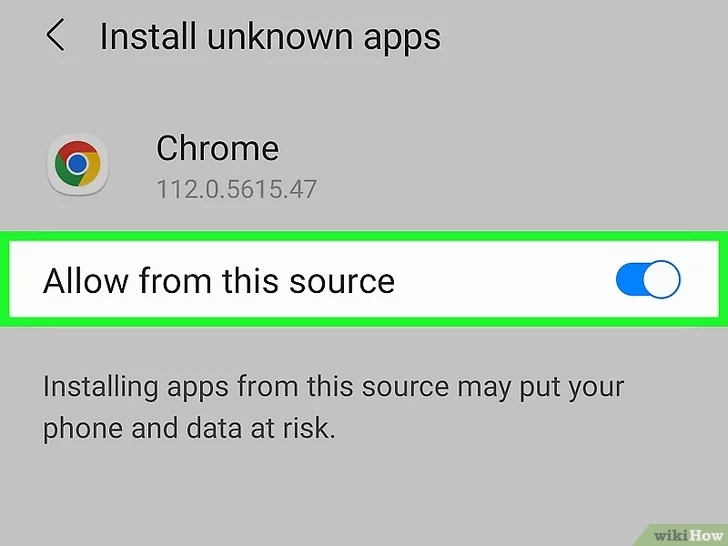
By default, Android only allows installs from the Google Play Store. Since the NetMirror APK lives on a website, you'll need to grant your browser one-time permission to install it.
Open Settings on your phone, search "Install unknown apps", pick the browser you'll use to download the APK (most users pick Chrome), and toggle Allow from this source to ON. This permission stays active only for that one app — your phone is still protected.
Download the APK file
Open NetMirror in your browser and tap the big red Download APK (49 MB) button. The file will save to your Downloads folder — most browsers show a progress notification in the status bar.
If you see a Chrome warning like "this file may harm your device", that warning is generic for every APK and is not specific to NetMirror. Tap Keep / Download anyway — the SHA-256 hash matches the VirusTotal-scanned file (see the Safety section on the homepage).
Open the APK and tap Install
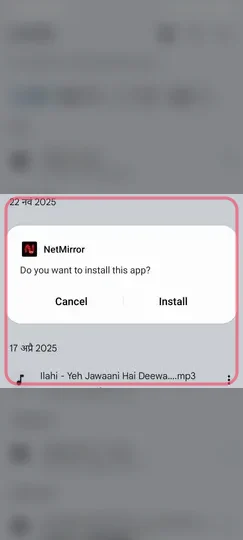
Tap the downloaded NetMirror.apk file from your Downloads folder (or directly from the browser's download notification). Android will show an install confirmation prompt: "Do you want to install this app?"
Tap Install. The prompt shows the app name (NetMirror) and the permissions it will request. NetMirror needs only basic permissions: storage (for offline downloads), notifications (for update prompts) and network access. No location, no contacts, no microphone.
Wait for the install to finish
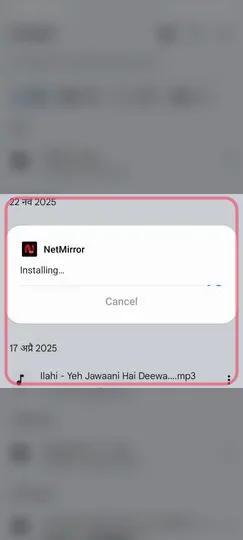
Android now installs NetMirror. You'll see a progress dialog with a thin progress bar — typically 15-30 seconds on modern phones. The screen briefly dims; that's the system installer working.
Do not press Cancel mid-install. If you ever need to abort, it's safer to let it finish and then uninstall normally from app settings.
Tap Open to launch NetMirror
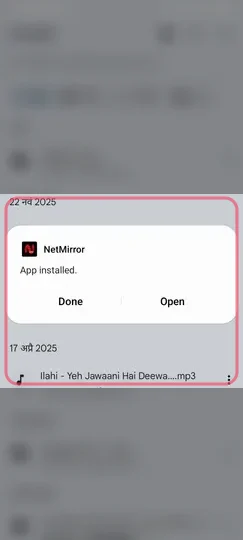
When the install completes, Android shows an "App installed" dialog with two buttons: Done and Open. Tap Open to launch NetMirror immediately, or Done to return to your Downloads (the icon will appear in your app drawer regardless).
First launch takes 4-6 seconds while the app loads the OTT source list. After that, you're straight into the Netflix-style home feed — no signup, no email, no card.
You\'re done — NetMirror is installed.
If everything went smoothly, you\'ll see the red NetMirror "N" icon in your app drawer and Open will launch you straight into the streaming feed. If anything misbehaved, the troubleshooting section covers the six most common errors.
First-run setup
When you open NetMirror for the first time, you\'ll go through a brief onboarding (about 20 seconds total):
- 1
A one-time language picker — set your default audio and subtitle language. You can change this per-title later from the player.
- 2
A 12-15 second "support us" ad on first daily launch only. After this single daily ad, you get unlimited ad-free streaming for 24 hours.
- 3
A storage permission prompt (only if you plan to use offline downloads — tap Allow and pick a folder).
- 4
A Picture-in-Picture permission prompt (optional — needed for PiP playback when you switch to another app).
After onboarding, you land on the home feed — a familiar Netflix-style grid with tabs for the major OTT platforms. No signup at any point. Your watchlist and "Continue Watching" row are stored on-device.
Troubleshooting
6 common issues · verified fixesThe six most common install hiccups we\'ve seen across thousands of installs — each with the actual root cause and the verified fix. Tap any issue to expand.
"Parse error: There was a problem parsing the package"
The APK file downloaded incompletely or is corrupted.
Delete the existing NetMirror.apk from your Downloads folder, then re-download. Make sure the connection doesn't drop mid-download. If your phone is on Android 5.0 — the absolute minimum — try a build flagged compatible with your OS in the changelog page.
"App not installed as package appears to be invalid"
An older version of NetMirror is already installed, or the APK signature doesn't match the existing app.
Uninstall the existing NetMirror from Settings → Apps first, then re-run the install from the freshly downloaded APK. Your watchlist persists across reinstalls.
Google Play Protect blocks the install
Play Protect flags any APK from outside the Play Store as a precaution, not because of actual malware.
On the warning dialog, tap More details → Install anyway. You can also open Play Store → Profile icon → Play Protect → ⋮ → Turn off Play Protect temporarily during install (turn it back on after).
Install button is greyed out
Some Android versions require you to scroll the permission list to the bottom before enabling the install button.
Scroll the install dialog all the way down — the Install button becomes tappable. On Android 12+, you may also need to tap Continue first.
Antivirus app (e.g., AVG, McAfee) deletes the APK
Some antivirus apps treat ad-supported APKs as PUP (Potentially Unwanted Program) and quarantine them.
Add NetMirror.apk to your antivirus exceptions / whitelist before downloading again. The 2/57 PUP flag is a false-positive triggered by the ad SDK — see the Safety section on the homepage for the full VirusTotal breakdown.
I can't find the APK in my Downloads folder
Some browsers (Samsung Internet, In-App browsers) save downloads to a non-standard location.
Open the Files app, search "NetMirror" — Android will find the APK wherever it is. Alternatively, retry the download in Chrome, which always uses the standard /Download folder.
Android install FAQ
Seven questions readers ask most often after — and sometimes during — an Android install.
Will sideloading this APK damage my phone?
Will the app update itself?
Can I uninstall it cleanly later?
Do I need to keep "Install unknown apps" enabled forever?
Will it work on a Huawei phone without Google Services?
Will it run on my Android tablet?
Does the app track my activity?
Ready to install?
You\'ve seen exactly what each step looks like. The full 49 MB v6.1 APK is one tap away — VirusTotal verified, SHA-256 published.